
Why Video to MP3 Conversion Fails
Troubleshoot unsupported containers, missing audio tracks, incompatible codecs, damaged files and browser memory limits.
By MP4ToMP3.tools Editorial Team · 2026-09-03 · Updated 2026-09-16
A video-to-MP3 conversion can fail before or after the local FFmpeg runtime starts. The stage and error code help distinguish a wrong file type from a codec problem, missing audio, corruption or insufficient browser memory.
Match the error to your next step
Use the code shown in the converter. These entries describe its current error categories; a code is a starting point, not a complete diagnosis of your file.
| Code shown | What it indicates | What to try next |
|---|---|---|
E_UNSUPPORTED_CONTAINER | Wrong container for this page, or inconsistent file identification | Choose the matching tool or Video to MP3 for MP4/MOV/WebM. Do not rename the extension to bypass the check. |
E_FILE_TOO_LARGE | Input exceeds the current device limit | Choose a smaller local file. The limits are 500 MiB on desktop and 200 MiB on mobile; files below them can still fail. |
E_NO_AUDIO_TRACK | No audio track was found | Check the source's audio tracks and the recording/export settings. Choose a copy that contains audio. |
E_UNSUPPORTED_CODEC | A codec is outside the available conversion path | Re-export in a tested combination from the source application, then try again. |
E_ORIGINAL_AUDIO_UNSUPPORTED | The audio cannot use the verified Original copy path | Keep the selected file, choose MP3 and Retry when transcoding is available. |
E_OUT_OF_MEMORY | The browser ran out of working memory | Close unused tabs and choose a smaller source, or try a desktop browser. |
E_ENGINE_LOAD | The Worker or conversion engine did not load | Check the connection and whether a content blocker is blocking this site's engine files, then Retry. |
E_CONVERSION_FAILED | Conversion failed without a more specific supported diagnosis | If Trim audio is on, the selected range may contain no audio. Adjust the range or turn trimming off, then Retry with the same file. If full-file conversion still fails, check the source and try a fresh export. |
E_OUTPUT_TOO_LARGE | WAV output reached its separate safety limit | Use a shorter source, choose mono if suitable, or use MP3. WAV limits are 128 MiB on desktop and 64 MiB on mobile. |
E_DOWNLOAD_FAILED | The browser could not start the download | Check browser download permissions, retry, and reselect/convert if the result is no longer available. |
An actual no-audio example
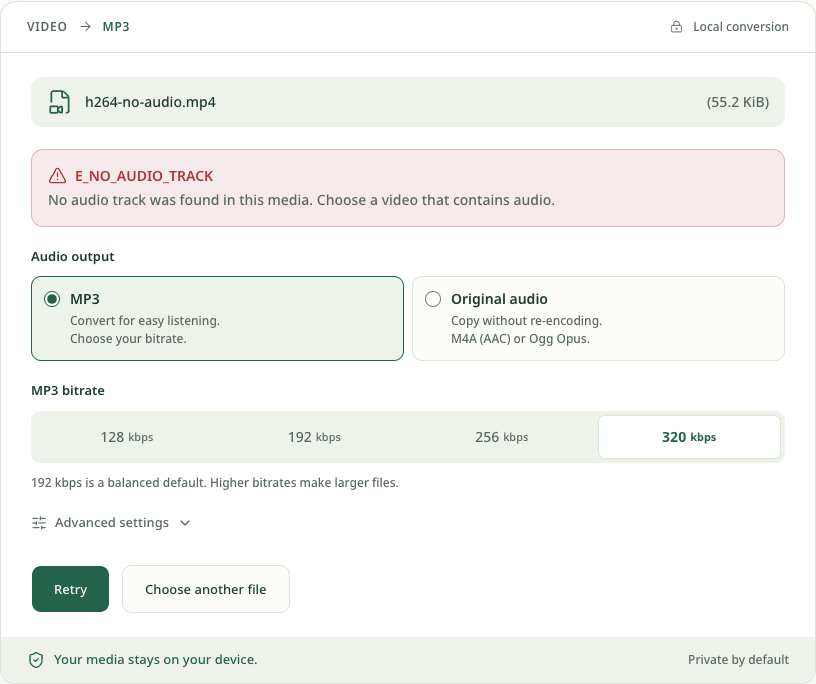
No audio track and an audio track containing silence are different. A silent audio track may convert successfully and still sound silent. Listen to the source and use the file-information steps to check whether an audio stream exists. Changing bitrate cannot recover sound that was never recorded.
The container is not supported
The current public pages accept only the tested MP4, MOV and WebM containers. Each dedicated page is narrower: the MP4 page rejects MOV and WebM, for example. A file whose extension, MIME hint and container signature disagree is rejected before the large FFmpeg runtime loads.
E_UNSUPPORTED_CONTAINER means the file is outside that page's container boundary
or its basic identifying information is inconsistent. Renaming the extension does
not convert the container.
The file has no audio track
Some screen recordings and camera exports contain video only. FFmpeg cannot make an
MP3 without an audio stream. E_NO_AUDIO_TRACK means the container was readable but
no usable audio track was found.
Confirm that the source plays audible sound in another trusted player. If the file really is silent video, there is no audio for the converter to recover.
The codec or Original mode is not supported
A supported container can hold an untested codec. E_UNSUPPORTED_CODEC identifies
a codec outside the verified conversion path. For Original extraction,
E_ORIGINAL_AUDIO_UNSUPPORTED means the detected audio does not match the verified
AAC-to-M4A or Opus-to-Ogg copy path. You can keep the file selected, change the mode
to MP3 and Retry when transcoding is available.
See MP4 vs MOV vs WebM for the difference between a container and its streams.
The file is damaged
An interrupted transfer, incomplete export or malformed header may let a filename look normal while FFmpeg cannot parse or convert it. Re-exporting from the original application is usually safer than repeatedly renaming or editing the damaged file.
The browser runs out of memory
Browser-local conversion must hold the runtime, input and working output on the
device. The site applies soft limits of 500 MiB on desktop and 200 MiB on mobile,
but available memory may be lower. E_OUT_OF_MEMORY can still occur below those
limits, especially with other memory-heavy tabs open.
Close unused tabs, try a smaller source or use a desktop browser with more available memory. The size limit is not a promise that every file below it will finish.
Engine loading or download fails
E_ENGINE_LOAD can result from a blocked or unavailable Worker/core/WASM asset.
Check content blockers and retry on a stable connection. E_DOWNLOAD_FAILED occurs
after conversion when the browser cannot complete the local download action.
A trimmed range has no audio
A video's audio track can end before its video. A range inside the video's duration may therefore contain no audio, even when the full file plays sound. The converter rejects an empty result instead of offering an empty download.
For an MP3 or WAV conversion with Trim audio enabled, keep the file selected, open Advanced settings, and choose a range where the source has audio. You can also turn Trim audio off to convert the full file, then click Retry. If the full-file conversion still fails, check the other causes above; this error does not by itself prove that the selected range was the cause.
Retry without losing track of the result
For a temporary engine-loading problem, use Retry with the selected file. For a wrong or damaged source, use Choose another file and select a fresh copy. The converter does not upload the file while you retry.
After success, listen to the audio and download it before choosing Convert another file or closing the tab. The result is temporary browser data; the site has no conversion history that can restore it later. If the download started but you cannot find it, see the Mac download steps or iPhone download steps.
For the currently tested boundaries and outputs, see Supported Formats. The converter performs this work locally; it does not silently fall back to a media upload or server conversion.
When the source is ready, choose the tool for its actual file type: MP4 to MP3, MOV to MP3, or WebM to MP3. Select the local file again on that tool page; opening a guide or another tool does not transfer your selected file.
Primary technical reference
FFmpeg's official documentation describes how demuxers read container streams and how encoders and muxers produce outputs: FFmpeg formats documentation.