
How to Convert MOV to MP3 on Mac
Convert a compatible MOV to MP3 on Mac, choose audio settings and find your download. Learn when to keep the original AAC audio as M4A instead.
By MP4ToMP3.tools Editorial Team · 2026-09-08 · Updated 2026-09-11
Open MOV to MP3, select a compatible .mov file from your Mac,
choose the MP3 settings and click Convert to MP3. When the audio is ready,
listen to it and click Download MP3. Your video stays on your Mac during
conversion, and you do not need an account.
If your destination accepts M4A and you want to keep the existing AAC audio, use Original audio on the Extract Audio from Video page instead. That choice avoids encoding the audio again.
1. Locate a complete MOV file
Start with a video that plays with sound on your Mac. If it is in iCloud Drive, wait for it to download before selecting it. The browser needs the video itself, not a link to a shared album or an unfinished cloud download.
If your video is in Photos, select it and choose File → Export → Export
[number] Videos. Choose an export quality and save it to an accessible folder.
Apple documents the choices in its
Photos export guide.
Check the resulting extension: an .mp4 export belongs on
MP4 to MP3, even if the original recording came from an iPhone.
To check a MOV's codecs, open it in QuickTime Player and choose
Window → Show Movie Inspector (Command-I). Apple's
Movie Inspector guide
explains the information shown. Our verified MOV sample contains H.264 video
and AAC audio. HEVC/H.265, ProRes and other MOV combinations have not been
verified here; the .mov extension alone does not establish compatibility.
2. Select the file and choose MP3 settings
- Open the MOV converter.
- Click Choose a MOV file and select the file from your folder. You can also drag a file from Finder onto the selection area.
- Check the filename in the ready state.
- Start with 192 kbps. Choose 128 kbps for a smaller output, or 256/320 kbps if you need a higher bitrate and accept the larger file.
- Open Advanced settings if needed. Auto preserves the source sample rate and channel count; use 44.1/48 kHz or Mono/Stereo only when required by the app that will use the audio.
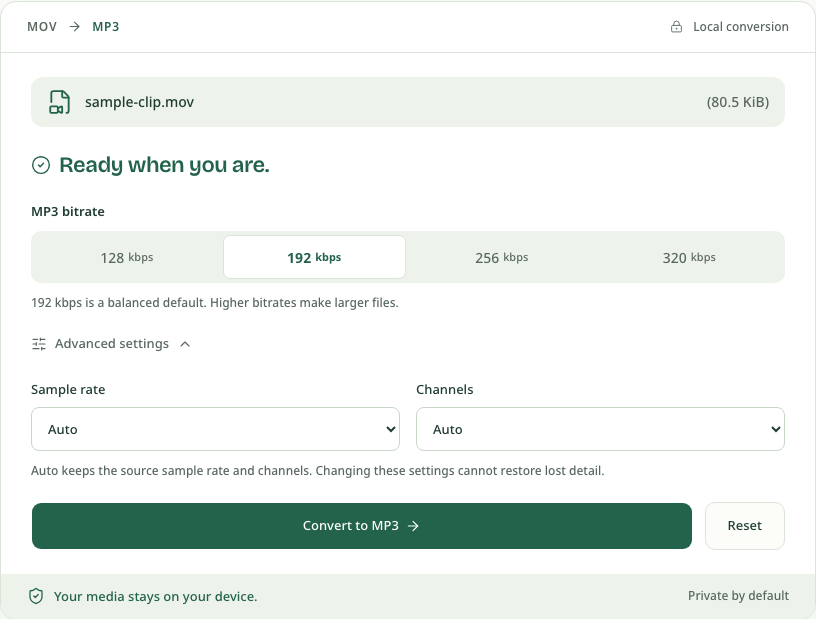
AAC-to-MP3 conversion is lossy. A larger bitrate cannot recover detail missing from the original recording. For a fuller comparison, see the MP3 bitrate guide.
3. Convert, listen and download
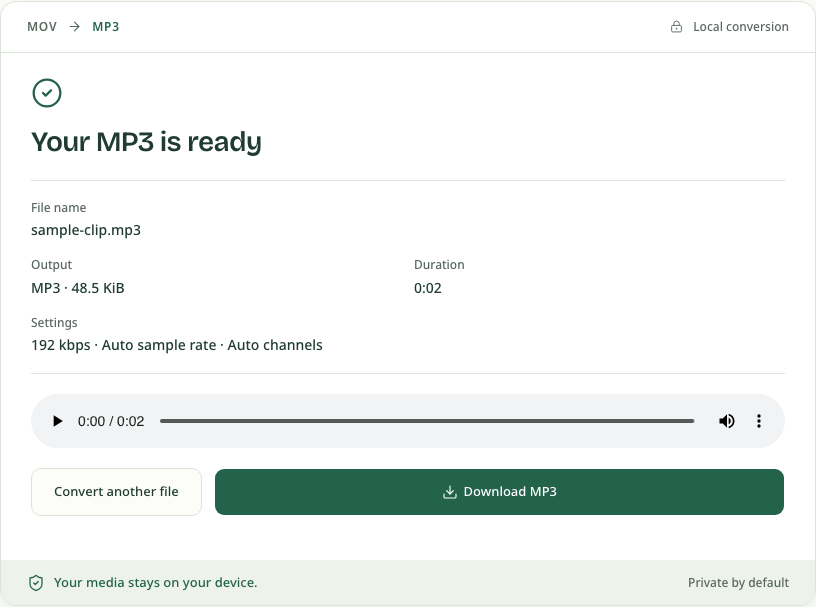
Click Convert to MP3 and keep the tab open. The page loads the conversion engine when you start; the time needed depends on the file, connection for that initial load, and available device resources.
When the result appears, play a section to check it. Click Download MP3 and complete any browser save prompt. Download before resetting or closing the page: the result player is a temporary browser preview, not a saved file on your Mac.
4. Find the downloaded MP3
In Safari, open the Downloads list and click the magnifying glass beside the file to reveal it in Finder. If it is not in your expected folder, check Safari → Settings → General → File download location. Apple describes both controls in its Safari download guide.
In another browser, use its downloads list or the folder you selected in the
save dialog. The result normally keeps the video name and changes the extension
to .mp3; your browser may add a suffix if a file with that name already exists.
Open the saved file to check it before discarding the browser result.
When to choose M4A instead
Choose the output based on where the audio will go:
| What you need | Use | Result |
|---|---|---|
| An app, player or recipient specifically asks for MP3 | MOV to MP3 | A newly encoded MP3 at your selected bitrate |
| Keep compatible AAC audio without another encode | Extract Audio from Video → Original audio | AAC copied into an M4A file |
| Uncompressed audio from an MP4 for editing | MP4 to WAV | 16-bit PCM WAV; this separate tool accepts MP4, not MOV |
For Original extraction, select Original audio, choose your compatible MOV, then click Extract audio. If the first audio track is supported AAC, download the M4A result. Bitrate and resampling choices do not apply to a copied track. See how Original extraction works for its tested boundaries.
QuickTime Player also offers File → Export As → Audio Only. Apple describes
that output as MPEG-4 audio containing AAC, rather than MP3. It is an alternative
when AAC audio meets your needs; Apple does not describe this export as a
bit-for-bit stream copy. See
QuickTime's export options.
Changing an M4A filename to .mp3 will not convert its audio.
If the MOV will not convert
No audio track: listen to the source and inspect it in QuickTime Player. A screen recording may never have captured the microphone or other sound source. Conversion cannot recreate sound that was not recorded.
Unsupported codec: check the Movie Inspector information against the verified H.264/AAC combination. A MOV can hold many different codecs. Switching to Original can help only when the file has a compatible AAC track; it is not a universal repair for a codec error.
File too large or the tab runs out of memory: the desktop input limit is 500 MiB, but available browser memory may be lower. Try a shorter clip. This tool processes one file at a time, without batch conversion. For a compatible file within the input limit, Advanced settings → Trim audio lets you enter start and end times to save an MP3 excerpt. The browser must be able to read the video length, and the segment must be at least 0.1 seconds. Trimming does not reduce the input size or guarantee lower memory use. Original audio keeps the complete track. The conversion error guide explains other errors and when to retry.
Example outputs and verification
This walkthrough was checked on September 8, 2026, using Chromium on macOS and a generated two-second H.264/AAC MOV. We selected the file, converted it, downloaded the MP3 and checked its codec, duration, 48 kHz sample rate and single channel. We also downloaded and checked the Original AAC/M4A result.
Open or save the MP3 sample or M4A sample to inspect the output. They contain a short test tone. The Finder, Photos, Safari and QuickTime directions refer to the Apple documentation linked above; browser screenshots show the site's actual interface, not Apple system dialogs.
Convert your MOV to MP3, or use the iPhone walkthrough when your video is on your phone.