
How to Extract Audio from a Video on iPhone
Choose a video on iPhone, extract MP3 or compatible original audio in your browser, and find the saved file in Files. Includes screenshots and download steps.
By MP4ToMP3.tools Editorial Team · 2026-09-08
To save just the sound from a video on your iPhone, open Extract Audio from Video, choose MP3 or Original audio, select the video and run the conversion. Download the result before closing the page, then find it in the Files app.
You do not need an account. The conversion runs in your browser; MP4ToMP3.tools does not upload the selected video. You still need a connection to load the page and conversion engine.
Before you start
Use a short video that you can already play with sound. This walkthrough uses a MOV containing H.264 video and AAC audio. The same tool also accepts compatible MP4 files; the tested MP4 combination is H.264 with AAC.
An iPhone can record other formats. HEVC/H.265 and ProRes recordings have not been verified here, so the fact that a video came from an iPhone does not guarantee it will convert. Start with a small file: the mobile input limit is 200 MiB, and available browser memory can be lower.
1. Make the video available to the file picker
If the video is already in Files, open it there first and let any iCloud download finish. Remember its folder so you can select the same file in Safari.
If it is in Photos, open the video and tap Share. Look for Save to Files in the sharing actions, choose a folder and save a copy. Available actions vary with the item and iOS version. Apple explains how to open and use the Photos sharing menu.
Return to Safari and open the audio extractor. After choosing an output in the next step, tap the file-selection button. Use Choose File or Browse if offered, then open the folder you used above. The picker labels can vary. Select the actual video file, rather than an iCloud sharing link.
Saving to iCloud Drive can sync a file through Apple's service. To keep your saved copy on this phone, choose an On My iPhone folder when available. This is separate from the converter's local processing.
2. Choose MP3 or keep the original audio
The output choices are visible before you select a file:
- MP3: choose this if the app or person receiving the audio needs an MP3. Leave the bitrate at 192 kbps for a starting point. Under Advanced settings, leave sample rate and channels on Auto unless your destination requires something else.
- Original audio: choose this to keep compatible AAC audio from an MP4 or MOV without encoding it again. The downloaded file will be M4A, not MP3. Compatibility is checked when extraction starts.
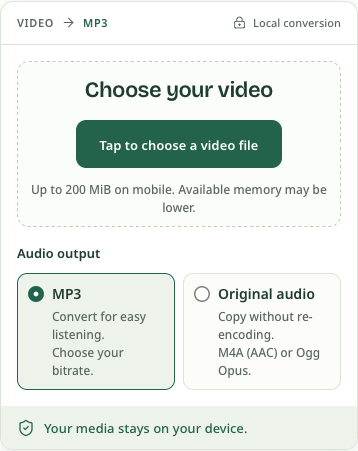
Select your video. Check the filename shown in the ready state, then tap Convert to MP3 or Extract audio, depending on the mode you chose. Keep Safari and this page open while it prepares the engine and processes the file. If the file contains several audio tracks, only the first one is used.
3. Download the finished audio
When the result appears, use the audio player to check it if playback is available. Tap Download MP3 or Download M4A. If Safari asks you to confirm the download, confirm it and wait for it to finish.
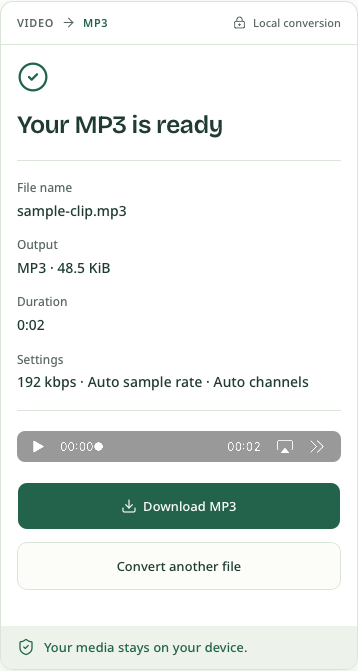
The result on this page is temporary. Download it before selecting another file, resetting, reloading or closing the tab. Seeing the success message is not the same as saving the file.
4. Find the file in Safari or Files
After downloading, open Safari's Downloads control near the address/search field. You can also open Files → Browse → iCloud Drive → Downloads if Safari uses that location. Apple illustrates both routes in its guide to finding iPhone downloads.
If it is not there, check Settings → Apps → Safari → Downloads. That setting
can point to iCloud Drive, On My iPhone, or another folder. Open that location
in Files and look for your video's name with .mp3 or .m4a at the end.
See Apple's download-location settings
if your folder differs.
An audio download is a file in that folder; it is not automatically added to Photos or your Music library. Open it from Files, or use the destination app's file-import controls.
If something does not work
The video is missing from the picker. Finish saving or downloading it in Files, then select it again. A shared URL or a cloud placeholder is not a complete local video. For an MP4-only workflow, you can also use MP4 to MP3; for several supported video containers, use Video to MP3.
Original audio is unavailable. Choose MP3 for the selected file and use Retry. That can help when the audio is decodable but cannot be copied using this site's Original profiles. It cannot repair an unsupported codec or a video that has no audio track.
The tab stops or conversion fails. Try a shorter clip and keep Safari open.
If the same short file still fails, note the error shown and follow the
conversion error guide. Renaming a
.mov file to .mp4 does not change its format.
Example outputs and verification
We ran both modes on a two-second H.264/AAC MOV: the MP3 result uses 192 kbps, 48 kHz and one channel; the Original result contains AAC in M4A. You can open or save the MP3 sample and M4A sample. These are short generated test tones, not recordings from a user's phone.
The site screenshots and actual downloads were checked on September 8, 2026, using mobile WebKit simulation on macOS. The Photos, Safari and Files directions were checked against the linked Apple documentation; this walkthrough has not been validated end to end on a physical iPhone.
Open Extract Audio from Video to use your own compatible clip. Working on a Mac instead? Follow the MOV to MP3 Mac walkthrough.