
MP3 Bitrate: 128 vs 192 vs 320 kbps
Compare 128, 192 and 320 kbps MP3 settings, including file-size tradeoffs, listening context and when a higher bitrate helps.
By MP4ToMP3.tools Editorial Team · 2026-09-03 · Updated 2026-09-10
MP3 bitrate controls how many bits per second the encoder can use for the audio. For the constant-bitrate choices in our converters, 128 kbps uses the least data, 192 kbps is the balanced default, and 320 kbps uses the most. A higher number can preserve more detail, but it also creates a larger file and cannot restore detail that was already missing from the source.
Quick comparison
| Setting | Approximate audio data per minute | A practical starting point |
|---|---|---|
| 128 kbps | 0.96 MB | Speech, drafts and size-sensitive sharing |
| 192 kbps | 1.44 MB | General listening and a balanced default |
| 256 kbps | 1.92 MB | Music where extra headroom is useful |
| 320 kbps | 2.40 MB | Highest available MP3 setting in these tools |
The estimates use bitrate × time ÷ eight and exclude small container and metadata overhead. They are planning figures, not an exact prediction for every output.
What changes when bitrate increases
MP3 is a lossy codec. Its encoder removes or approximates information to meet a target data rate. More available bits generally give the encoder more room for complex passages, sharp transients and stereo detail. The audible difference also depends on the source, listening equipment, environment and listener.
If the source audio was already heavily compressed, converting it to 320 kbps does not make it equivalent to an uncompressed master. It creates a new lossy encode at a higher target rate. When a compatible original AAC or Opus track should be kept without another encode, use Extract Audio from Video and choose Original instead.
Choosing 128, 192, 256 or 320 kbps
Choose 128 kbps when spoken content, quick review or smaller downloads matter more than maximum fidelity. Choose 192 kbps as a sensible first try for mixed content. Choose 256 kbps when the source is good and music quality matters more than file size. Choose 320 kbps when you want the most generous MP3 bitrate this site exposes and accept the larger result.
Sample rate and channels are separate controls. Auto keeps FFmpeg's compatible choice based on the input and encoder. Forcing mono can reduce stereo information; forcing 44.1 or 48 kHz resamples the decoded audio and is not a quality upgrade by itself.
Try it locally
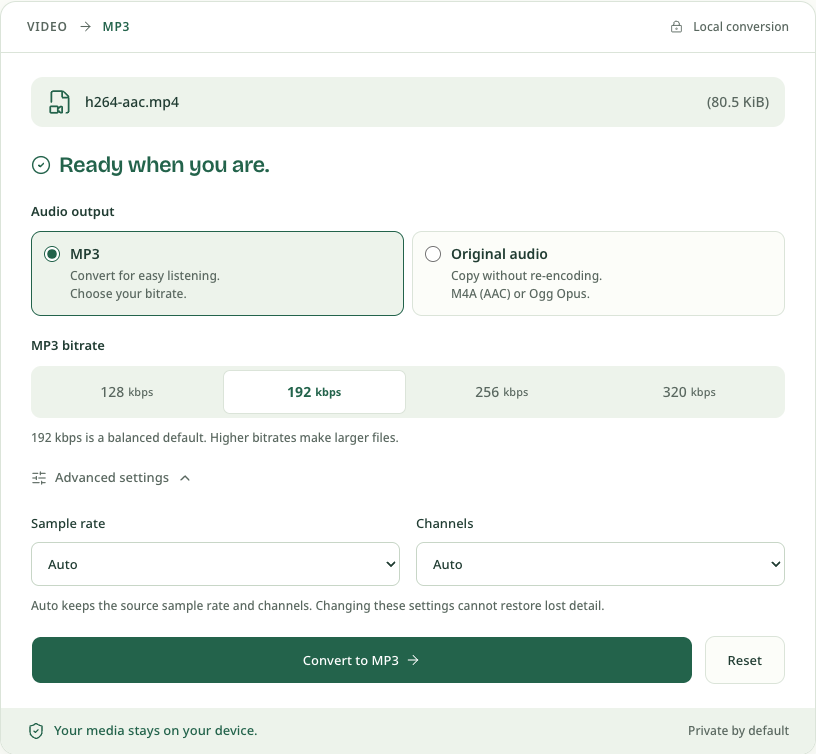
Select your file, choose one of the four MP3 bitrate buttons, then convert and download. To compare another setting, download the first result before choosing Convert another file, select the same source and change only the bitrate. Keep sample rate and channels on Auto for a consistent comparison.
Four actual outputs from the same clip
We converted a two-second generated MP4 containing H.264 video and mono AAC audio in Chrome on September 10, 2026. All four downloads contain MP3 audio at 48 kHz, one channel, with sample rate and channels left on Auto. The measured sizes include the whole file, including headers and encoder padding; 1 kB below means 1,000 bytes.
| MP3 setting | Actual file size | Open or save the result |
|---|---|---|
| 128 kbps | 33.17 kB | 128 kbps sample |
| 192 kbps | 49.68 kB | 192 kbps sample |
| 256 kbps | 66.20 kB | 256 kbps sample |
| 320 kbps | 82.71 kB | 320 kbps sample |
These short tones demonstrate output format and size, not a music listening test. They do not establish that one bitrate sounds better. Compare a passage from your own source at the same playback volume before choosing a setting for music or speech. Your browser may open the sample in its player; use its download control to save the file.
The MP4 to MP3 converter offers all four bitrates and performs the operation inside your browser. The MOV to MP3 and WebM to MP3 pages apply the same output controls to their tested input boundaries. If you want one entry point for all three tested containers, use Video to MP3.
Primary technical reference
FFmpeg documents its libmp3lame wrapper and the bitrate option in the official
FFmpeg codecs documentation.