
How to Convert a WebM Browser Recording to MP3
Save a WebM recording as MP3, check missing or silent audio, and keep original Opus when needed. Includes real converter screenshots and downloadable examples.
By MP4ToMP3.tools Editorial Team · 2026-09-10 · Updated 2026-09-11
To turn a saved browser recording into an MP3, open WebM to MP3,
select the finished .webm file and click Convert to MP3. Listen to the
result, then click Download MP3. Conversion happens on your device without
uploading the recording or creating an account.
This guide starts with a file saved by your recording app. MP4ToMP3.tools does
not record your screen or download recordings from a meeting link. The verified
WebM combination is VP9 video with Opus audio; a .webm extension alone does
not establish which codecs are inside.
1. Save the recording and check its sound
Stop recording in the app you used, finish its save or export step, and locate the resulting file. If it lives in cloud storage, download a complete local copy before selecting it. Play that copy and check that the speech or other sound you need is present. An MP4 or MOV export belongs on MP4 to MP3 or MOV to MP3, respectively; renaming it does not change its format.
For your next recording, check each sound source separately:
- Microphone: your voice or room sound, as configured in the recording app.
- Shared tab audio: sound from the selected browser tab, when available and enabled in the sharing controls.
- Window or system audio: availability depends on the browser, operating system and selected sharing target. Sharing the picture does not guarantee that its sound is included.
Make a short test recording and listen to the saved file before recording a long session. MDN's screen capture documentation explains that an audio track is conditional on the selected source and browser support. Control names and available choices differ between recording apps.
2. Select the WebM and choose MP3 settings
- Open the WebM converter and click Choose a WebM file.
- Select one finished WebM file. On desktop, you can also drag it onto the selection area.
- Confirm the selected filename and start with the default 192 kbps.
- Use 128 kbps when you prefer a smaller output, or 256/320 kbps when your destination calls for a higher bitrate and you accept the larger file.
- Leave sample rate and channels on Auto unless another app requires a particular setting. Advanced settings offers 44.1/48 kHz and Mono/Stereo.
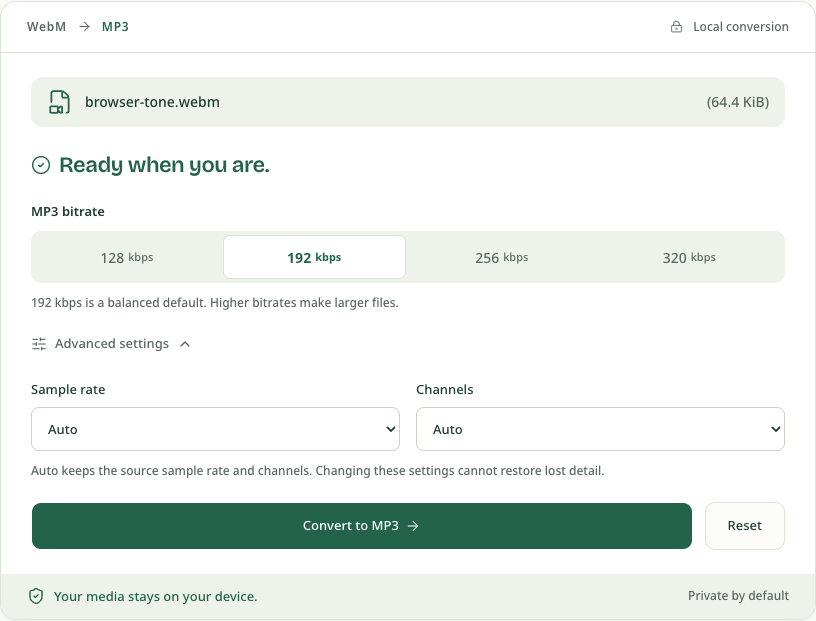
Opus-to-MP3 conversion is lossy. Increasing the output bitrate cannot restore sound that was never recorded or detail already removed from the source. See the bitrate comparison for the size tradeoffs. If the destination accepts Opus, the original-audio option below avoids another encode.
3. Convert, listen and save the MP3
Click Convert to MP3 and keep the tab open. The converter prepares its local engine and processes the selected file. Time depends on the recording, the initial engine download and the device's available resources.
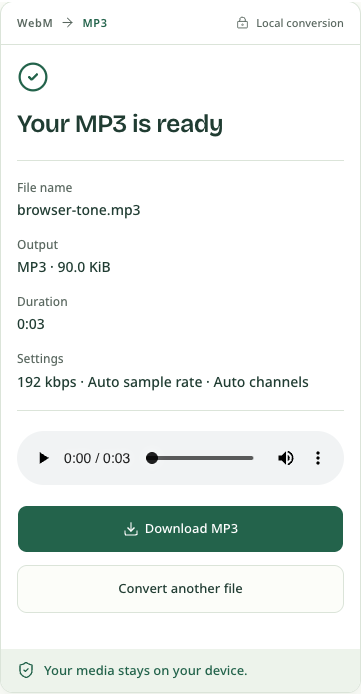
Play the result to check it, then click Download MP3. The preview on the result page is temporary: download before closing the tab or choosing Convert another file. Find the saved file in your browser's downloads list or the location you chose in its save dialog.
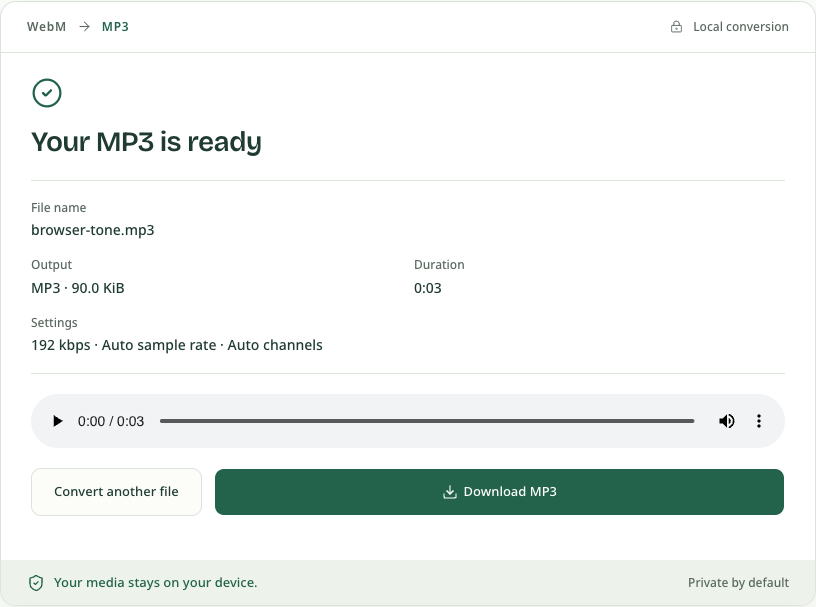
On a phone, select the locally saved recording through the browser's file picker. After downloading, use its downloads controls or the device's file app to find the MP3. Keep the conversion tab in the foreground. Our narrow-screen check used Chrome mobile emulation; it does not establish how every mobile recording app or native file picker behaves.
4. Diagnose missing sound before trying again
A missing audio track and a silent audio track are different. A successful conversion means an output was created; listening confirms whether it contains the sound you need.
| What happens | What to check | What to do next |
|---|---|---|
| The converter reports no audio track | The saved video may contain only pictures | Record again with the required audio source enabled, then check a short saved sample |
| Conversion succeeds but the MP3 is silent | Player volume, the original recording and the recorded audio source | If the source is silent too, adjust the recorder and make a new recording |
| The source sounds right but the output has the wrong sound | The source may have multiple audio tracks | This tool uses the first audio track; export a copy with the needed track in your recording or editing app |
| The file cannot be decoded | An unfinished save, damaged file or a codec outside the verified boundary | Save or export a complete compatible copy and try again |
| A long recording fails on a phone | File size and available browser memory | Try a smaller export or a device with more memory; a file below the limit is not guaranteed to fit in memory |
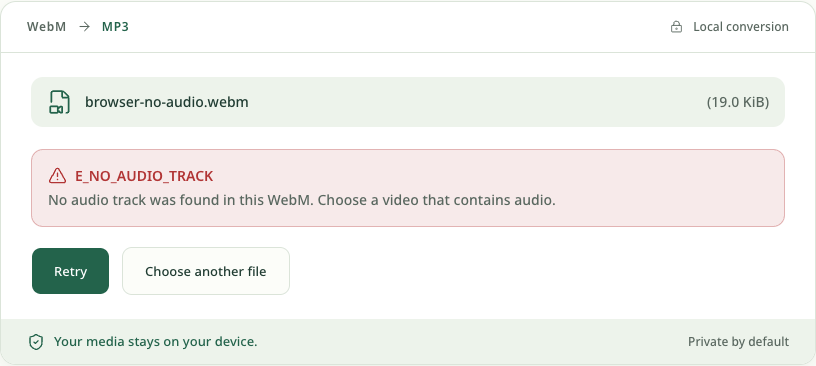
The current file-size limits are 500 MiB on desktop and 200 MiB on mobile. Available memory can impose a lower practical limit. The tool converts one file at a time, without track selection or batch conversion. To save an MP3 excerpt, open Advanced settings → Trim audio and enter start/end times. The minimum segment is 0.1 seconds. Some browser recordings have no readable duration; trim is then unavailable, but complete-file conversion still works. A shorter output does not bypass input or memory limits. Original Opus extraction keeps the complete track. For other errors, see the conversion troubleshooting guide.
5. Keep original Opus when MP3 is optional
If your destination supports Ogg Opus, open
Extract Audio from Video, choose Original audio
before selecting the WebM, then convert and download. A compatible first Opus
audio track is copied into a .opus file without re-encoding. This preserves
the existing encoded audio; it does not improve its quality or turn it into MP3.
Vorbis is not supported by this original-audio mode.
See how extraction without re-encoding works for the AAC/M4A and Opus output boundaries.
Try the same small samples
These examples were generated in Chrome 152 on macOS on September 10, 2026. The browser's MediaRecorder recorded an animated canvas with a synthetic Web Audio tone, a silent track, or no audio track. They are controlled test recordings, not microphone, system-audio or screen-sharing captures. Each recording ran for approximately four seconds; media timestamps and encoded output durations can differ slightly.
| Sample | Expected result here |
|---|---|
| Browser recording with a tone — WebM | Converts to this 192 kbps MP3, or copies to this original Opus file |
| Browser recording with a silent track — WebM | Converts successfully to a silent MP3 |
| Video-only browser recording — WebM | Reports that the file has no audio track |
The MP3 and Opus examples were downloaded through the actual converter and their codecs checked after saving. Depending on your browser, opening a sample link may play it first; use the player's save control or save the linked file to try it in the converter yourself.
Ready to use your own saved recording? Open WebM to MP3, or choose Extract Audio to keep compatible original Opus audio.